

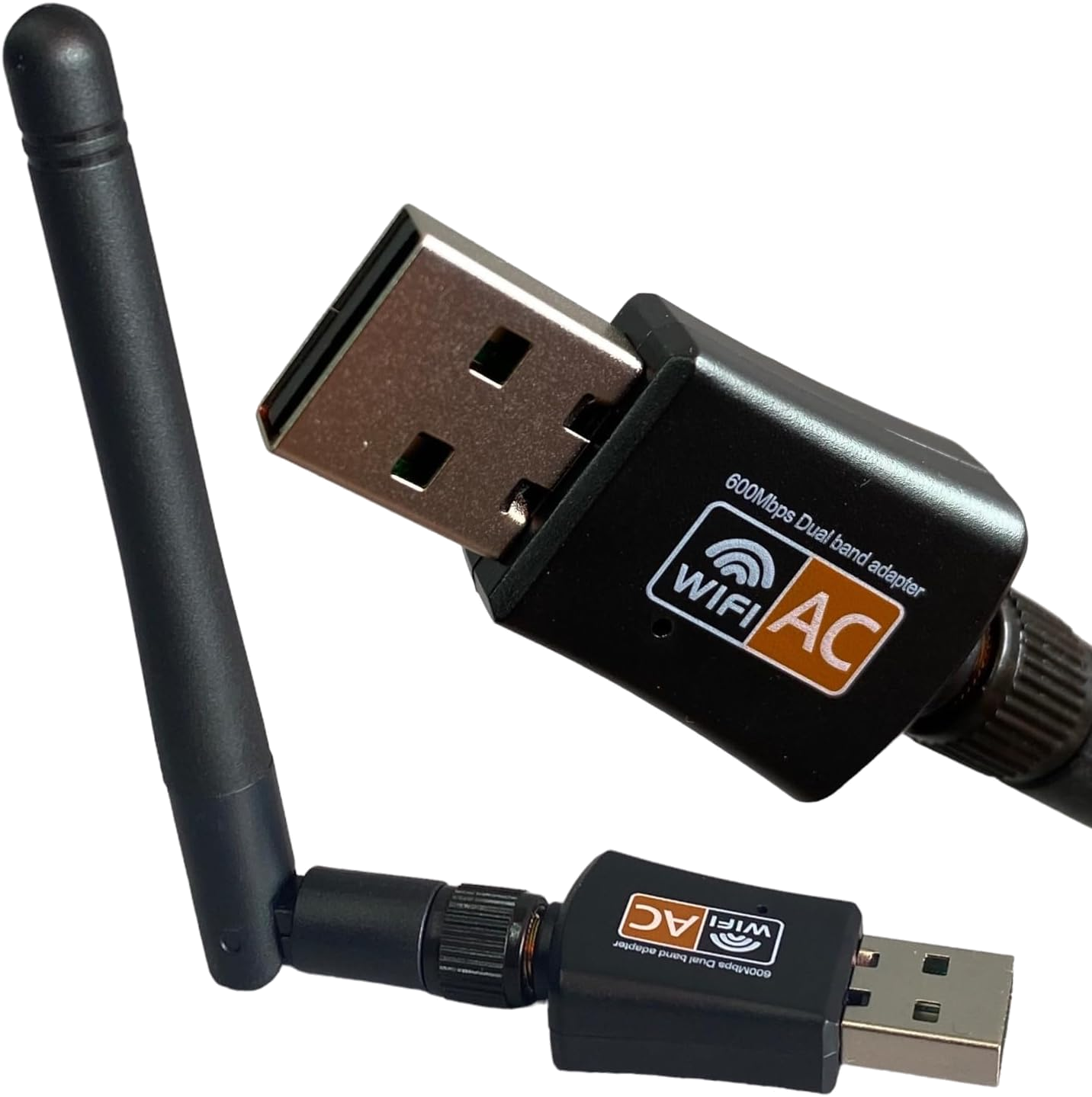
This guide covers connecting a dual-band 802.11ac USB Wi-Fi dongle (such as a Realtek RTL8811CU / RTL8821CU adapter) to a RemoteRF server or host over USB. Support is included in the built-in wifi schema.
Overview
RemoteRF supports USB Wi-Fi dongles through the built-in wifi schema, which exposes a dedicated USB wireless interface for 2.4 GHz and 5 GHz 802.11 scanning, RSSI measurement, and beacon Information Element (IE) inspection without disturbing the host’s primary network connection.
device_type:wifi- Transport: USB 2.0/3.0 (
nl80211/iwwireless interface) - Required identifiers: Wireless interface name (
interface: "wlx...") or USB auto-detection (auto_detect: true)
1. Install Dependencies and Configure Network Isolation
Install System Wireless Utilities
Install iw, wireless-tools, and network-manager utilities on the host:
sudo apt update
sudo apt install -y iw wireless-tools iproute2
Identify the USB Wireless Interface
Plug in the USB Wi-Fi dongle and list wireless interfaces using iw dev and lsusb:
iw dev
lsusb
Typical output for a Realtek 802.11ac USB adapter (0bda:c811, rtw_8821cu):
phy#1
    Interface wlx90de80c154a5
        ifindex 4
        wdev 0x100000001
        addr 90:de:80:c1:54:a5
        type managed
Prevent NetworkManager from Auto-Connecting (Keep Wired Default Route Safe)
To ensure the USB Wi-Fi dongle is dedicated exclusively to RemoteRF scanning and never overrides the host’s wired Ethernet default route, mark the interface as unmanaged or disable auto-connection and allow non-root nl80211 scans:
# Allow iw to trigger hardware scans without interactive sudo prompts
sudo setcap cap_net_admin,cap_net_raw+eip $(which iw)
2. Configure devices.yml
The server seeds the wifi schema automatically on startup. Add the wifi entry to devices.yml:
devices:
  - device_id: 22
    device_type: wifi
    name: WiFi_Dongle
    init:
      auto_detect: true
      usb_id: "0bda:c811"
To bind a specific interface name directly:
devices:
  - device_id: 22
    device_type: wifi
    name: WiFi_Dongle
    init:
      interface: "wlx90de80c154a5"
      auto_detect: false
3. Verification
- Start or restart the RemoteRF service (
serverrf -sorhostrf -s). - Confirm that
WiFi_DonglereportsONLINE. - Reserve the device and verify scanning from Python:
from remoterf.drivers import ensure_driver

TOKEN = "WiFi_Dongle@ucla"
ensure_driver(token=TOKEN)

from remoterf.drivers.wifi import WifiDongle

dongle = WifiDongle(token=TOKEN)
print("Interface:", dongle.interface, "Default route safe:", dongle.default_route_safe)
summary = dongle.scan_summary()
print("Scan summary:", summary)
dongle.close()
Next Steps
- See the Wi-Fi Dongle Client Guide for burst RSSI power averaging and beacon inspection examples.
- Return to Device Setup Overview.