

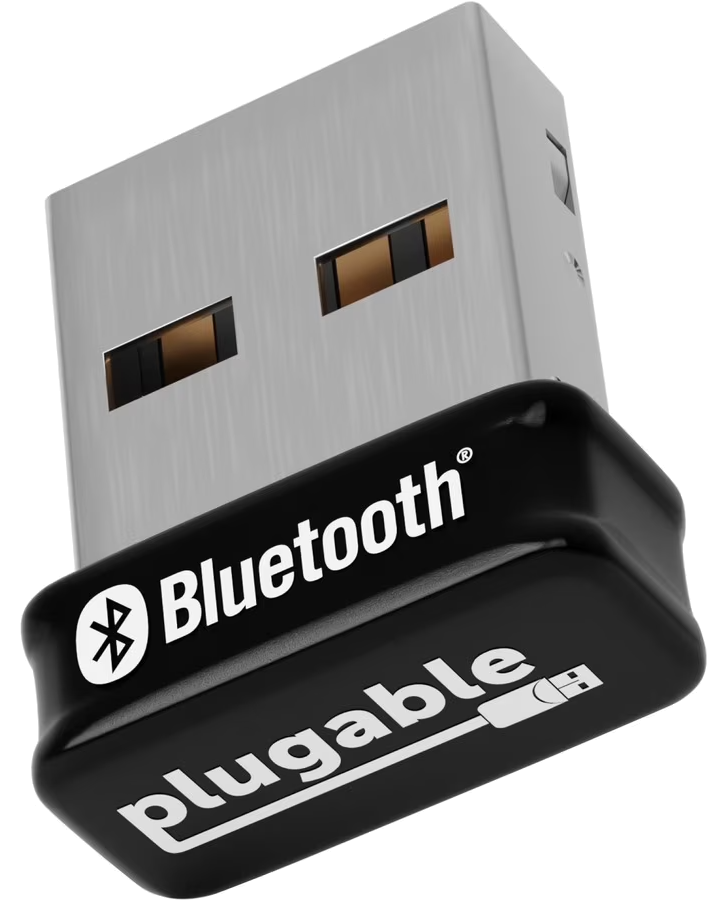
This guide covers connecting a USB Bluetooth Classic (BR/EDR) and Bluetooth Low Energy (BLE) dongle (such as a ZEXMTE CSR8510 or BlueZ HCI adapter) to a RemoteRF server or host over USB. Support is included in the built-in bluetooth schema.
Overview
RemoteRF supports USB Bluetooth dongles through the built-in bluetooth schema, wrapping a Linux BlueZ HCI controller (hci0, hci1, etc.) to expose over-the-air BLE advertisement and Classic inquiry scanning, RSSI measurement, IEEE OUI vendor identification, and distance estimation.
device_type:bluetooth- Transport: USB BlueZ HCI controller (
hci0,hci1, …) - Required identifiers: HCI adapter name (
adapter: "hci1") or hardware MAC address (address), or auto-detection
1. Install Dependencies and Detect the HCI Adapter
Install BlueZ Utilities
Install the Linux bluez stack and command-line inspection tools on the server or host:
sudo apt update
sudo apt install -y bluez bluez-tools rfkill
Verify Adapter Enumeration (hciconfig / bluetoothctl)
Plug in the USB Bluetooth dongle, ensure Bluetooth is unblocked by rfkill, and list available HCI controllers:
sudo rfkill unblock bluetooth
hciconfig -a
bluetoothctl list
Example output when an onboard controller (hci0) and an external USB Bluetooth dongle (hci1) are present:
hci1:   Type: Primary  Bus: USB
        BD Address: 00:1A:7D:DA:71:13  ACL MTU: 310:10  SCO MTU: 64:8
        UP RUNNING PSCAN
Grant non-root raw HCI socket capabilities if serverrf or hostrf runs as an unprivileged user:
sudo usermod -aG bluetooth $USER2. Configure devices.yml
The bluetooth schema is included out of the box. Add the Bluetooth dongle to ~/.config/remoterf/devices.yml on the server (or ~/.config/remoterf/host/devices.yml on a host), or run serverrf devices add bluetooth for the interactive wizard:
devices:
  - device_id: 23
    device_type: bluetooth
    name: Bluetooth_Dongle
    init:
      adapter: "hci1"
If an external USB Bluetooth dongle is attached, init: {} automatically detects it (preferring a CSR8510 controller first, then any other removable USB dongle while ignoring built-in UART, fixed-port, or Intel adapters) even if its hciN index changes across replugs.
3. Verification
- Start or restart the RemoteRF service (
serverrf -sorhostrf -s). - Confirm that
Bluetooth_DonglereportsONLINE. - Reserve the device and run a test scan from Python:
from remoterf.drivers import ensure_driver

TOKEN = "Bluetooth_Dongle@ucla"
ensure_driver(token=TOKEN)

from remoterf.drivers.bluetooth import BluetoothModule

bt = BluetoothModule(token=TOKEN)
print("Adapter:", bt.adapter, "Address:", bt.address, "Chipset:", bt.chipset)
devices = bt.scan(timeout=5.0)
print(f"Discovered {len(devices)} Bluetooth devices")
bt.close()
Next Steps
- See the Bluetooth Dongle Client Guide for full Python scanning and filtering examples.
- Return to Device Setup Overview.