
Host Deployment
This page walks through setting up a RemoteRF host in order to connect SDRs to a RemoteRF server over Wi-Fi, LAN, or VPN, as opposed to a wired connection, such as USB.
A RemoteRF host is a computer that is deployed alongside one or more SDRs and provides them a connection to the RemoteRF server over Wi-Fi, LAN, or VPN. Hosts allow you to deploy SDRs in a geographically distributed manner, in order to create large-scale testbeds that span rooms, buildings, or even entire campuses. A single RemoteRF deployment can have many hosts, with each host physically connected to one or more SDRs.
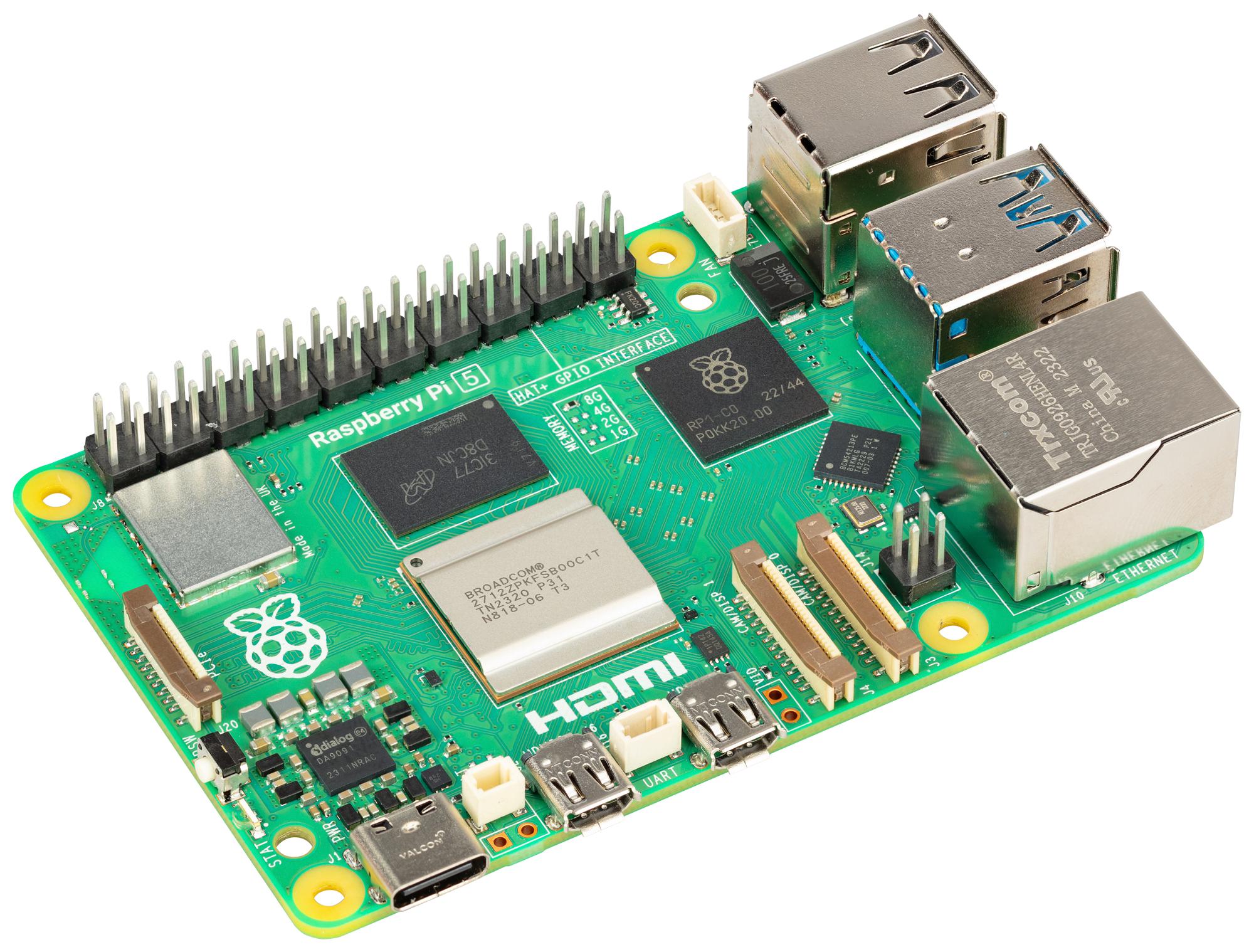
Any Linux computer with network access and USB connectivity can act as a RemoteRF host. For most deployments, a lightweight computer—such as a Raspberry Pi—can fill this role.
Prerequisites
Before proceeding, it is assumed that you have already completed the basic Server Deployment process and obtained the following hardware components:
- A Linux-based computer, such as a Raspberry Pi or lightweight desktop computer, which will act as the RemoteRF host. We recommend Ubuntu 24.04 LTS, but other distributions should also work, though they have not been extensively tested. We recommend a fresh install.
- At least one supported SDR that will be physically connected to the host over USB.
This guide will assume that the Linux host satisfies the following:
- It has been installed with Python 3, ideally managed through
conda(or Miniconda). - It can reach the main RemoteRF server over LAN, Wi-Fi, or VPN.
- It has reliable USB access to the SDRs you plan to connect.
Quick Guide: If you need help installing Linux, installing Python, or confirming that the host can reach the RemoteRF server, please refer to the following guides.
Configuration
With an up and running RemoteRF server, you can now configure the host. Make sure the host is powered on and connected to the same network as the server.
To complete host configuration, open a terminal on the host itself. You can do this by connecting a monitor, keyboard, and mouse to the host, or by signing in remotely over SSH if SSH is enabled. The host does not need to be in its final deployment location yet; as long as it can reach the RemoteRF server during setup, you can configure it now and move it later.
remoterf-host environment via conda activate remoterf-host.
The hostrf commands used below will only work from within this environment. Keep this terminal open throughout this configuration.
Install and Verify the Host CLI
Install the RemoteRF host package in the active environment, then make sure the hostrf command is available. This single base package also installs the Python runtimes for the built-in Pluto, RTL-SDR, and HackRF drivers; no device extras are required.
python -m pip install -U pip
python -m pip install remoterf-host
hostrf --helphostrf --help should print a detailed list of available commands and options. If the shell says hostrf cannot be found, reactivate the correct environment and confirm that remoterf-host installed successfully.
Choose a Host Name and Create a Token
Choose a name that you want to associate with this specific host, then create its token on the RemoteRF server.
lab-host-0serverrf --host --token-create "lab-host-0" --length 8 --forcehostrf configuration command you should run later on the host machine.
Host token created and stored at ~/.config/remoterf/db/hosts_auth.env
First start the server with 'serverrf -s'.
Then, on the host you want to set up, run the following:
hostrf --config --host lab-host-0 "Vn7Kx3QpL9s"Start the Server
On the RemoteRF server machine, start the server before proceeding.
serverrf --serveApply the Returned Host Command on the Host
On the host machine, run the exact hostrf --config --host ... command returned by the token creation step.
hostrf --config --host lab-host-0 "Vn7Kx3QpL9s"Point the Host at the Server
Configure the host with the RemoteRF server address before starting the long-running host process. Use the server static IP or DNS name with the main port, not the certificate port.
192.168.1.5061005hostrf --config --addr 192.168.1.50:61005
hostrf --config --showREMOTERF_ADDR=192.168.1.50:61005.
Start the Host
Start the host process so it can connect back to the already running RemoteRF server.
hostrf --servehostrf should connect successfully to the RemoteRF server and remain running.
Verify the Host from the Server
On the active serverrf CLI session, confirm that the newly configured host machine is visible to the server.
hosts statusAfter all of these steps are completed successfully, the host is now fully functional and reachable from the RemoteRF server, as long as it remains on the same network.