
ADALM-PLUTO Device Guide
Use this guide when you want to attach one or more ADALM-PLUTO SDRs to RemoteRF, whether they are owned by the main server or by a RemoteRF host.
This guide covers the simplest schema-backed device path in the current RemoteRF server implementation: ADALM-PLUTO SDRs. The Pluto schema is already loaded as a built-in driver, so most setups only need working Pluto dependencies and a correct devices.yml entry.
Overview
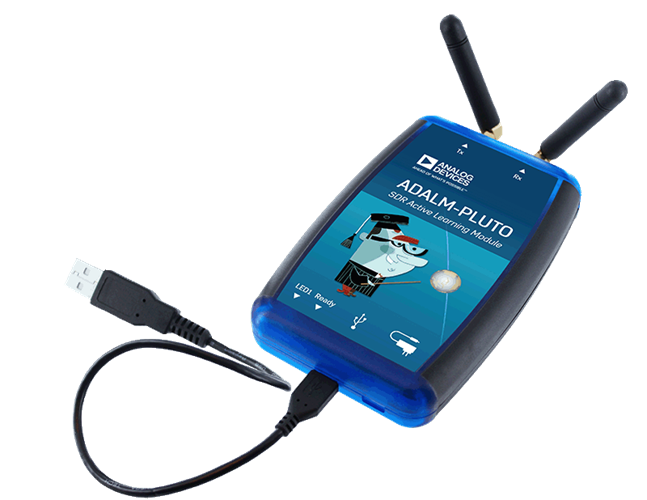
There is native support of the ADALM-PLUTO devices (AKA “Pluto SDRs”) in RemoteRF via the built-in adalm_pluto schema.
Fundamentally, this guide is the same for both servers and hosts; whichever machine the Pluto is physically attached to must have the Pluto dependencies installed, must be able to see the Pluto locally, and must have the right devices.yml entry.
The only parts that vary are machine-local details such as which Python environment you install into, which devices.yml you edit, and whether you start serverrf or hostrf.
The minimum setup of Pluto devices is as follows:
- Install the native Pluto libraries and tools on the machine that owns the Pluto. The Python runtime is already included with
remoterf-serverandremoterf-host. - Make sure
iio_info -scan see the device on that same machine withoutsudo. - Add each Pluto physically connected to that machine to its
devices.ymlfile. - Restart that machine’s RemoteRF process.
Each of these steps is provided in detail below.
Install and Detect
Install Pluto Dependencies
The base remoterf-server and remoterf-host packages already install the Pluto Python runtime. Install the supporting native libraries and tools on the machine that owns the Pluto.
conda install -y libiio pylibiio libusb
sudo apt install libiio-utilsVerify Detection
Make sure the machine that owns the Pluto can see it before you touch devices.yml.
iio_info -sdevices.yml.
Fix USB Permissions
If the Pluto only appears when you run sudo iio_info -s, fix the USB permissions first. Otherwise, the Pluto may not be recognized properly when you start the RemoteRF server or host process. The older server notes used this udev rule pattern. TODO WHAT DOES THIS LAST SENTENCE MEAN?
sudo groupadd -f plugdev
sudo usermod -aG plugdev "$USER"

sudo tee /etc/udev/rules.d/53-adi-usb.rules >/dev/null <<'EOF'SUBSYSTEM=="usb", ATTR{idVendor}=="0456", MODE="0660", GROUP="plugdev"
EOFsudo udevadm control --reload-rules
sudo udevadm trigger
sudo reboot nowManifest Example
Save this file on the machine the Pluto is physically attached to. For a Pluto attached to the main RemoteRF server, place it at ~/.config/remoterf/devices.yml. For a Pluto attached to a RemoteRF host, place it at ~/.config/remoterf/host/devices.yml.
Below is an example devices.yml file for Pluto devices:
devices:
  - device_id: 1
    device_type: adalm_pluto
    name: Pluto A
    init:
      serial: "104473f6"

  - device_id: 2
    device_type: adalm_pluto
    name: Pluto B
    init:
      serial: "58472j"
Alternatively, for a Pluto attached directly to the main RemoteRF server, create the first YAML entry above through the CLI:
serverrf --device --add --pluto "1:Pluto A:104473f6"
serverrf --device --show
If the Pluto is attached to a RemoteRF Host instead, use hostrf for the add command:
hostrf --device --add --pluto "1:Pluto A:104473f6"The three colon-separated values are device_id:name:serial. This command writes the canonical ~/.config/remoterf/devices.yml file in the same YAML format shown above. With an otherwise empty inventory, the resulting file is:
devices:
  - device_id: 1
    device_type: adalm_pluto
    name: Pluto A
    init:
      serial: "104473f6"
For a host-attached Pluto, edit the host’s ~/.config/remoterf/host/devices.yml file directly.
Important:
Note that device_type must be adalm_pluto, not pluto. Older serverrf builds incorrectly wrote pluto; current releases accept that legacy value for upgrade compatibility and write adalm_pluto for new entries. init.serial should match the serial reported by iio_info -s. name is just the human-facing label RemoteRF shows to users. You can create many Pluto entries with the same schema because the schema is per device type, while devices.yml is per physical device instance.
Verify the Pluto Comes Online
Now, let's confirm the Pluto is indeed accessible. If you are connecting the Pluto to the server, run serverrf -s. If you are connecting the Pluto to a host, run hostrf -s.
Expected result: When the Pluto opens successfully, the current schema should print a line similar to Connected to Pluto serial=104473f6 via usb:....
Then check this: On a server-attached setup, in the interactive serverrf -s shell, run devices list. On a host-attached setup, you can also run devices list from hostrf -s to confirm the host loaded the Pluto locally, but you should still run devices list from the server side after the host connects so you can verify the main server sees it too.
Still having issues? Reboot the machine that has the Pluto physically attached, then rerun the startup command and repeat the devices list check.
Notes:
Restart the RemoteRF server after changing devices.yml or adding a custom Pluto schema. If you customize the Pluto schema, keep the method naming convention consistent with the IDL generator: get_*, set_*, and call_*. Clients do not need a manual Pluto-specific library rollout when you adjust the exposed interface. They fetch the schema from the server and regenerate their local remote driver when the schema hash changes.
Next Steps
Once the Pluto appears correctly in the inventory, this is the natural next step. Use it to connect clients, reserve devices, and begin running experiments.
Use this path if you want to modify the built-in Pluto schema behavior or build a custom schema around your own Python-controlled hardware.