
NI USRP-2901 Device Guide
Use this guide when you want to attach one or more NI USRP-2901 SDRs directly to the main RemoteRF server.
This guide covers the built-in NI USRP-2901 path in the current RemoteRF server implementation. The complete USRP schema is installed automatically on a fresh server, so most setups only need the supported UHD runtime, a detectable radio, and a correct devices.yml entry.
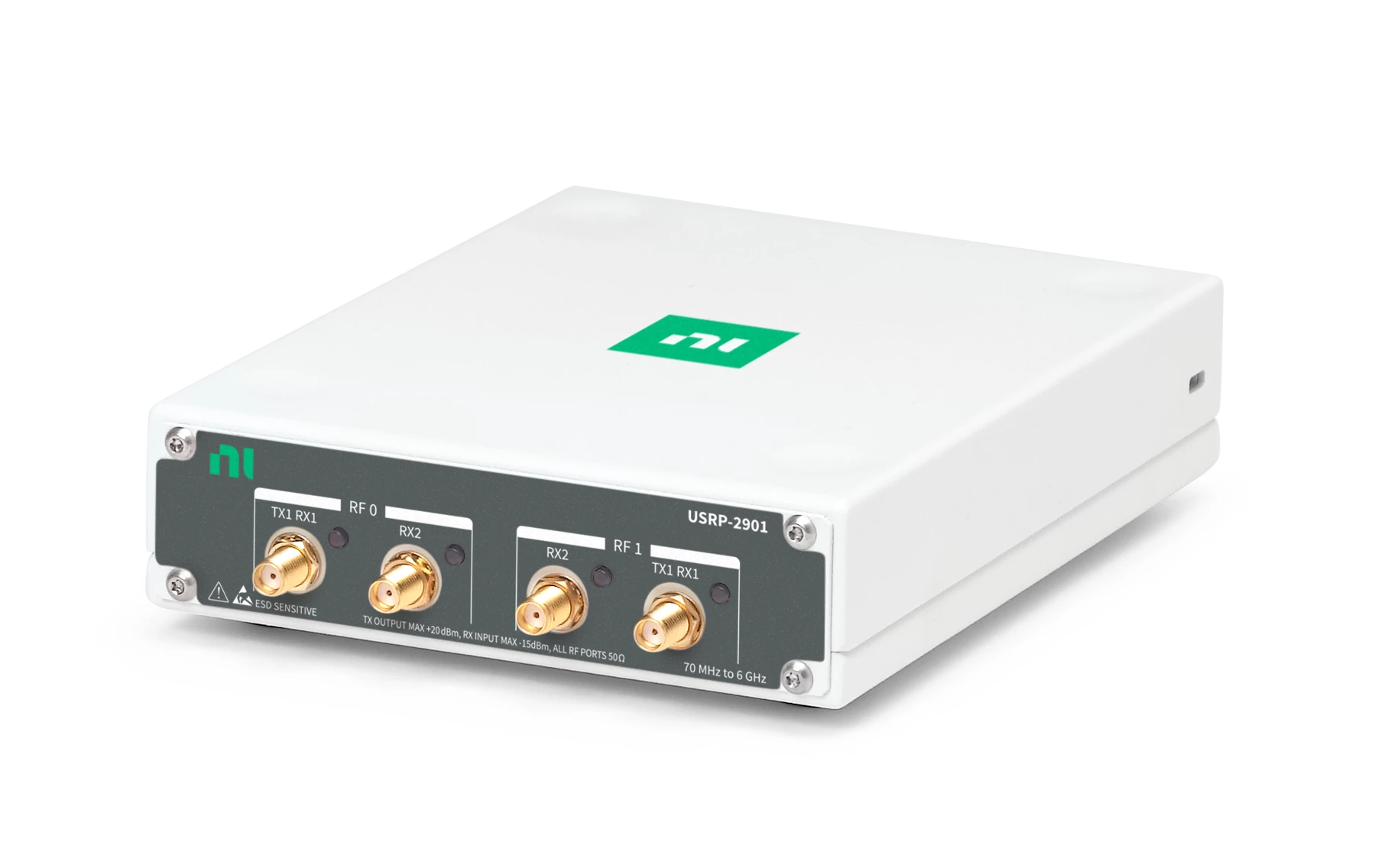
Overview
There is native support for the NI USRP-2901 in RemoteRF through the built-in usrp schema. The same schema also covers the closely related UHD B200 family; RemoteRF identifies the connected hardware profile when a client opens a session.
The current path is server-local: the Linux machine running serverrf must have the supported UHD runtime installed, must be able to see the radio locally without sudo, and must have the right devices.yml entry.
The minimum setup is as follows:
- Install the UHD 4.10.0.0 Python API and command-line tools in the environment used by
remoterf-server. - Connect the USRP directly to the server. USB 3 is recommended for higher-rate or two-channel streaming; USB 2 can be used for reduced-throughput work.
- Confirm that
uhd_find_devicesanduhd_usrp_probecan see the serial withoutsudo. - Add each physically connected USRP to the server’s
devices.yml, then restartserverrf.
Schema note:
A fresh RemoteRF server installs the full USRP schema automatically. If the machine already contains a custom driver registered as usrp in ~/.config/remoterf/drivers/, that custom driver takes precedence. Keep it only when that override is intentional.
Install and Detect
Install the Supported UHD Runtime
Install UHD and its Python bindings on the Linux server that owns the USRP. RemoteRF requires the UHD Python API version 4.10.0.0; a different UHD release is rejected when a real USRP session opens. The simplest exact-version install is the prebuilt Conda package.
conda activate YOUR_REMOTERF_ENV
conda install -y -c conda-forge "uhd=4.10.0.0"
uhd_images_downloaderpython - <<'PY'
import uhd
print(uhd.get_version_string())
PY4.10.0.0. Start serverrf from this same environment. See the Conda package page, the official UHD 4.10.0.0 release, or the official source-build guide. A distribution's default apt install may provide an older UHD, and the official PyPI wheels are intended for Windows, so neither is a safe substitute for this pinned Linux install without checking the resulting version.
Verify Detection
Connect the USRP by USB and confirm that UHD can find and probe it before you edit devices.yml.
uhd_find_devices --args "type=b200"
uhd_usrp_probe --args "type=b200,serial=YOUR_SERIAL"serial value and the probe completes successfully. Copy that serial exactly; it is the value you will place in devices.yml.
Fix USB Permissions
If UHD only finds the USRP with sudo, install the udev rules supplied with your UHD 4.10 installation, reload the rules, reconnect the radio, and sign out and back in if your distribution changed group membership.
sudo udevadm control --reload-rules
sudo udevadm triggersudo. Do not continue until the same account that starts RemoteRF can probe the radio directly.
Manifest Example
Save this file as ~/.config/remoterf/devices.yml on the main RemoteRF server to which the USRP is physically attached.
Below is an example devices.yml file for USRP-2901 devices:
devices:
  - device_id: 7
    device_type: usrp
    name: USRP-2901 Bench A
    init:
      profile: usrp2901
      type: b200
      serial: "31A2B3C"

  - device_id: 8
    device_type: usrp
    name: USRP-2901 Bench B
    init:
      profile: usrp2901
      type: b200
      serial: "32A0D07"
Alternatively, create the first YAML entry above through the server CLI:
serverrf --device --add --usrp-2901 "7:USRP-2901 Bench A:31A2B3C"
serverrf --device --show
If the USRP-2901 is attached to a RemoteRF Host instead, use hostrf for the add command:
hostrf --device --add --usrp-2901 "7:USRP-2901 Bench A:31A2B3C"The three colon-separated values are device_id:name:serial. This command writes the canonical ~/.config/remoterf/devices.yml file in the same YAML format shown above. With an otherwise empty inventory, the resulting file is:
devices:
  - device_id: 7
    device_type: usrp
    name: USRP-2901 Bench A
    init:
      profile: usrp2901
      type: b200
      serial: "31A2B3C"
Important:
device_type must be usrp, init.profile must be usrp2901, and init.serial must match the serial reported by UHD. RemoteRF uses that profile and serial to open the exact device with type=b200,serial=... only after an authenticated client opens a session; loading the inventory by itself does not claim the radio.
Verify the USRP Comes Online
Start the server with serverrf -s. Use devices list in the interactive shell to confirm that the inventory entry loaded.
Complete the hardware check: Reserve the USRP, then open it from a current RemoteRF client. The client fetches the server's schema and builds the UHD-like driver automatically.
from remoterf.drivers import ensure_driver

token = "reservation-token"
ensure_driver(token=token)

from remoterf.drivers.usrp import uhd

with uhd.usrp.MultiUSRP(token=token) as usrp:
    print(usrp.get_pp_string())
Expected result: Opening the session validates UHD 4.10.0.0 and claims the serial-bound radio. If this step fails, rerun uhd_usrp_probe as the RemoteRF service account and verify that no other process has claimed the device.
Remote API access:
All operations exposed by the current USRP schema are available without a separate policy file, including transmit controls, transmit streaming, GPIO/register methods, and property-tree writes. usrp_policy.yml is not required or read by the current server. Use appropriate attenuation, RF isolation, and authorized frequencies when transmitting.
Next Steps
Once the USRP appears correctly in the inventory, use this guide to connect clients, reserve the device, and begin running receive-safe experiments.
Use this path when you need a separate device type or a custom schema for Python-controlled hardware that RemoteRF does not already support.